Free tool comparison

Find a tinkercad alternative free enough for your workflow

Choosing a tinkercad alternative free tool depends on what you need next: simpler modeling, tighter engineering control, browser access, or a better path to fabrication. This guide compares the tradeoffs without treating every project as the same.

Use these focused comparisons when you already know which kind of replacement you want to investigate.

Who should choose each route

There is no single best replacement for every maker, student, or designer. Match the tool to the work you actually need to finish.

The first-time maker

You want to turn a rough idea into a simple object, name tag, enclosure, or classroom project without learning a complex interface.

Stay with Tinkercad or choose another guided browser tool; speed and confidence matter more than advanced constraints.

tinkercad vs onshape
The mechanical design learner

You need assemblies, technical dimensions, sketches, and more control as projects become less toy-like.

A parametric option such as FreeCAD is a better long-term learning route, provided you can accept a steeper start.

tinkercad vs freecad

The product prototyper

You are moving from a quick concept into parts that need repeatable dimensions, revisions, and a clearer engineering history.

A Fusion-style workflow gives you more headroom than Tinkercad, especially when design intent matters across revisions.

tinkercad vs fusion 360

The classroom facilitator

You need learners to start quickly, share a project, and understand the relationship between shapes and a finished object.

Keep the simplest browser experience for introductory lessons, then introduce a more capable alternative as a second-stage exercise.

tinkercad vs onshape

A practical migration path

Switching works best when you carry over the design intent, not every click or interface habit.

  1. 1

    Name the next constraint

    Write down what Tinkercad is limiting: precise dimensions, editable history, assemblies, collaboration, exports, or circuit behavior. One clear constraint makes the choice easier.

  2. 2

    Rebuild a small test object

    Pick a familiar project with two or three parts. Recreate it in the candidate tool and check how easily you can edit dimensions, move components, and recover from mistakes.

  3. 3

    Move only proven projects

    Keep your original files as references, export compatible geometry where possible, and transfer active projects only after the new workflow feels predictable.

The decision in three checks

Use these checkpoints to keep a free-tool comparison grounded in the work rather than in feature lists.

1 What are you designing, who will edit it, and where will it be made?
3 questions
2 Compare quick direct modeling with a constraint-driven parametric approach.
2 workflows
3 A small familiar object reveals more than a long feature checklist.
1 test project

Dimension by dimension

Tinkercad remains strong for approachable direct modeling. FreeCAD is a more serious free alternative when precision, editability, and engineering control take priority.

1

Getting started

Tinkercad

Very approachable for beginners; basic solids and operations are easy to discover.

FreeCAD

More concepts to learn, including workbenches, sketches, constraints, and feature history.

2

Modeling style

Tinkercad

Direct shape placement and grouping suit fast visual construction.

FreeCAD

Parametric modeling supports relationships, constraints, and deliberate design history.

3

Dimensional control

Tinkercad

Good for simple measurements and proportional edits.

FreeCAD

Stronger for constrained sketches, repeatable dimensions, and engineering changes.

4

Browser access

Tinkercad

Designed around an accessible web workflow.

FreeCAD

Primarily a desktop application, so installation and device compatibility matter.

5

Electronics learning

Tinkercad

Includes a separate circuits environment for introductory simulation and Arduino exercises.

FreeCAD

Focused on CAD rather than being a direct replacement for Tinkercad Circuits.

6

3D printing preparation

Tinkercad

Quick for simple printable forms and beginner projects.

FreeCAD

Better suited to parts where tolerances, revisions, and technical structure matter.

7

Best project scale

Tinkercad

Classroom objects, simple enclosures, decorative models, and early prototypes.

FreeCAD

Mechanical parts, assemblies, configurable designs, and longer-lived technical projects.

What changes after the switch

The same idea can feel very different depending on whether you value immediate shape-making or a model history you can revise later.

  • Quick direct model
  • Structured editable model

A free alternative should remove a real bottleneck, not add complexity for its own sake.

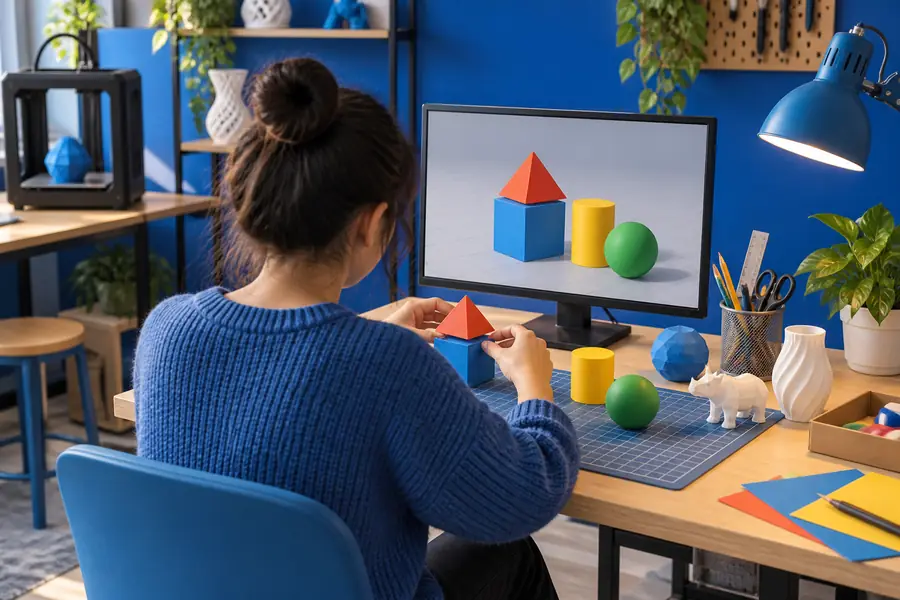
Simple beginner 3D modeling workspace
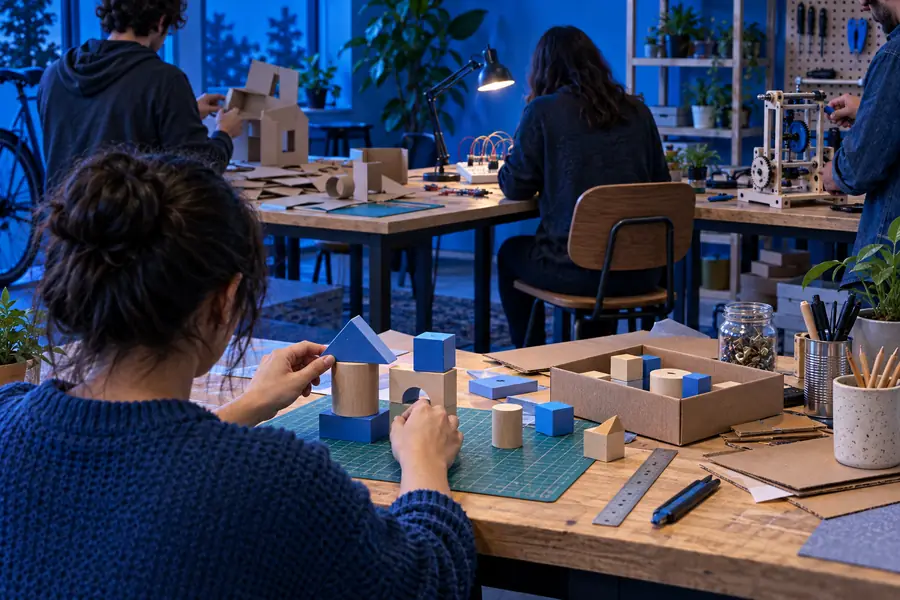
More structured 3D modeling workflow

Honest limits of the free route

Free does not mean frictionless. Check these limitations before moving a project or recommending a tool to a class or team.

  • No universal replacement

    One tool may improve precision while losing the instant accessibility, circuit features, or browser simplicity that made Tinkercad useful.

    WorkaroundChoose by project type and keep Tinkercad for beginner or electronics-focused work when it remains the better fit.

  • Imported files may not stay editable

    A mesh or neutral CAD export can preserve shape without preserving the original construction history, constraints, or grouped logic.

    WorkaroundTreat exports as reference geometry and rebuild important parts natively in the new tool.

  • Free plans can have boundaries

    Some browser-based or commercial tools restrict storage, collaboration, private documents, or advanced features on free plans.

    WorkaroundRead the current plan rules and test sharing, exporting, and backup before committing to a team workflow.

  • A steeper learning curve is real

    Parametric CAD can take longer to learn because sketches, dependencies, and feature order affect later edits.

    WorkaroundStart with one small part, learn only the needed workbench or feature set, and document the steps that worked.

Comparison FAQ

Answers to the most common question behind this search: finding a capable free replacement without making simple work harder.

There is no single winner for every project. FreeCAD is a strong choice for detailed parametric and mechanical work, while browser-based tools can be better for collaboration and beginners; the best option depends on whether precision or simplicity is your main need.

Yes, several tools offer free access, but their scope differs. FreeCAD is open-source desktop CAD, while other services may provide a free plan with limits on storage, collaboration, or advanced features.

FreeCAD is better when you need constrained sketches, feature history, assemblies, and more technical control. Tinkercad is usually better for quick beginner projects, classroom introductions, and simple models that do not need a complex design history.

You can move to free or open-source software, but you may trade away browser convenience or a gentle learning curve. Test one representative project first so you can compare editing, exporting, and sharing before moving everything.

Start creating
Start creating