Tool comparison

A practical guide to tinkercad vs freecad

Tinkercad and FreeCAD both help people create 3D designs, but they are built for different levels of control. Compare the tradeoffs before choosing a tool for learning, prototyping, or precise mechanical work.

These nearby comparisons help place Tinkercad and FreeCAD alongside other common browser-based and parametric design options.

Total cost by project type

The cheapest tool depends on what you value: immediate access, advanced engineering control, or the time required to become productive.

First-time maker

You want to combine basic shapes, test proportions, and create a simple object without learning a full CAD system.

Tinkercad keeps the entry cost in time and complexity low, making it a practical first step for small projects.

tinkercad alternative free
Mechanical designer

You need constraints, parametric edits, technical drawings, or detailed control over dimensions and features.

FreeCAD offers deeper engineering capabilities at no software purchase cost, but the learning and setup cost is higher.

tinkercad vs fusion 360

Teacher or student

A class needs a simple way to start 3D design, share beginner projects, and focus on concepts instead of menus.

Tinkercad is usually easier to introduce, while FreeCAD becomes more useful for advanced design assignments.

tinkercad vs onshape

Open-source advocate

You prefer a desktop tool with extensive modeling control and the ability to work without relying on a hosted editor.

FreeCAD is the stronger fit when local files, open-source development, and technical depth outweigh instant simplicity.

tinkercad alternative free

Where quality differs

Both tools can produce useful 3D models, but quality means different things in a quick concept model and a production-ready mechanical part.

  1. 1

    Define the required precision

    Separate visual simplicity from engineering accuracy. A decorative block or classroom model may need clean proportions, while a fitted part needs dimensions, constraints, and repeatable edits.

  2. 2

    Choose the modeling depth

    Use Tinkercad for direct shape combination and fast experimentation. Choose FreeCAD when sketches, constraints, feature histories, assemblies, or technical documentation matter.

  3. 3

    Check the output

    Before exporting, inspect scale, wall thickness, clearances, and file format. A visually convincing model can still fail when printed, assembled, or revised.

Where time differs

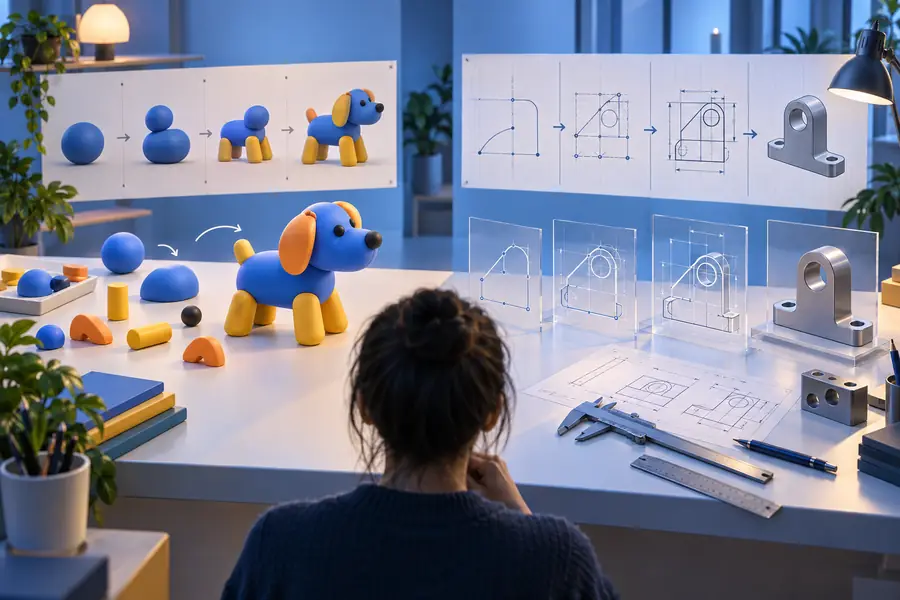
The biggest difference is often not the final geometry but how quickly you can reach a useful result and how safely you can change it later.

  • Fast direct modeling
  • Structured parametric modeling

Choose speed now or control later.

Comparison of simple and structured 3D design workflows
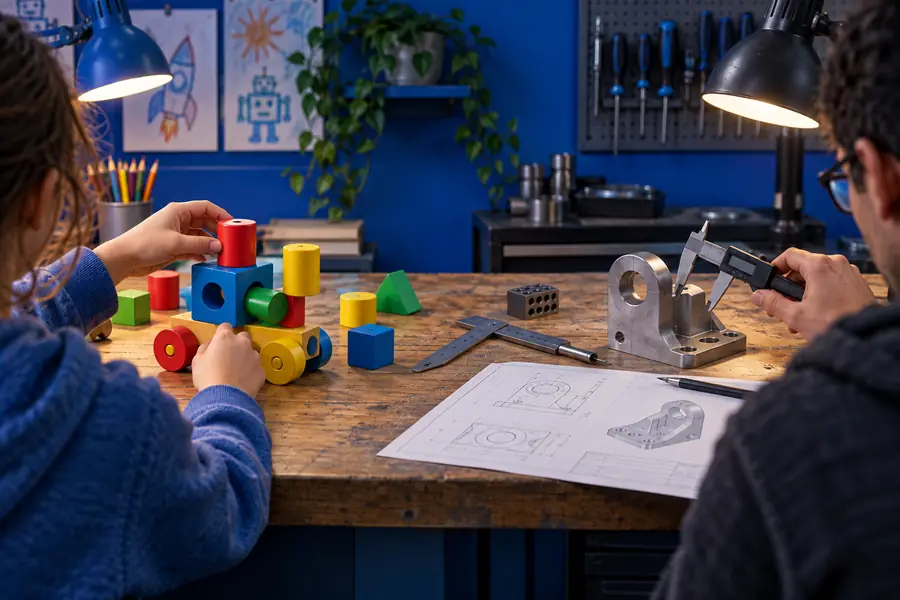
Comparison of beginner and advanced CAD workflows

When switching is worth it

A move from Tinkercad to FreeCAD makes sense when your current workflow is creating repeated rework, not simply because FreeCAD has more features.

1 FreeCAD can build models from constrained sketches and more structured feature workflows.
2D to 3D
2 FreeCAD remains available as free, open-source software for users who accept a steeper learning curve.
0 software cost
3 Parametric modeling can make dimension changes more systematic after the model is set up correctly.
1 editable history
4 Tinkercad remains effective for straightforward printable concepts that do not need engineering-grade history.
3D print focus

When switching is worth it

No comparison is complete without the cases where neither tool is the perfect answer.

  • Tinkercad cannot replace advanced mechanical CAD

    It is not designed for complex assemblies, detailed engineering drawings, or the full constraint-driven workflow expected in professional mechanical design.

    WorkaroundMove the finished concept into FreeCAD or another suitable CAD system when precision and revision control become central.

  • FreeCAD is not the fastest beginner environment

    Its workbenches, terminology, and modeling logic can slow down a first project, especially when the goal is only a simple shape or classroom prototype.

    WorkaroundStart with a small guided model and learn one workbench at a time instead of trying to master the entire application.

  • Neither tool guarantees a successful print

    A model can look correct on screen while having unsuitable scale, thin walls, weak tolerances, or geometry that a slicer interprets poorly.

    WorkaroundValidate dimensions, inspect the mesh, and test a small print before committing to a larger build.

  • Feature count alone does not determine value

    More commands do not automatically produce better results. A complex interface can add friction when the project only needs quick visual iteration.

    WorkaroundChoose the simplest tool that meets the project's accuracy, editing, and export requirements.

Comparison FAQ

Answers to the questions people most often ask when weighing these two free 3D design tools.

Neither is universally better; the right choice depends on the project. Tinkercad is better for quick, approachable shape-based modeling, while FreeCAD is better for precise, parametric, and mechanically oriented designs.

Yes. FreeCAD is free and open-source software, so there is no software purchase required to use its core application. You still pay in setup time and learning effort if you need its more advanced workflows.

Usually, yes. Tinkercad uses a direct combination of familiar geometric solids, while FreeCAD introduces workbenches, sketches, constraints, features, and more formal CAD concepts.

They can often be transferred through a compatible export and import workflow, but the result may not become a native parametric FreeCAD model. Treat the transfer as geometry handoff rather than a perfect preservation of editable design history.

Start with Tinkercad when the goal is to understand 3D space, create simple objects, or prepare a first printable design. Start with FreeCAD when learning technical CAD is itself the goal and you are ready for a more structured interface.

Start creating
Start creating